
Creating a Bid
Bids are how you price work and send proposals to general contractors or property owners. This guide creates a bid and fills in its details.
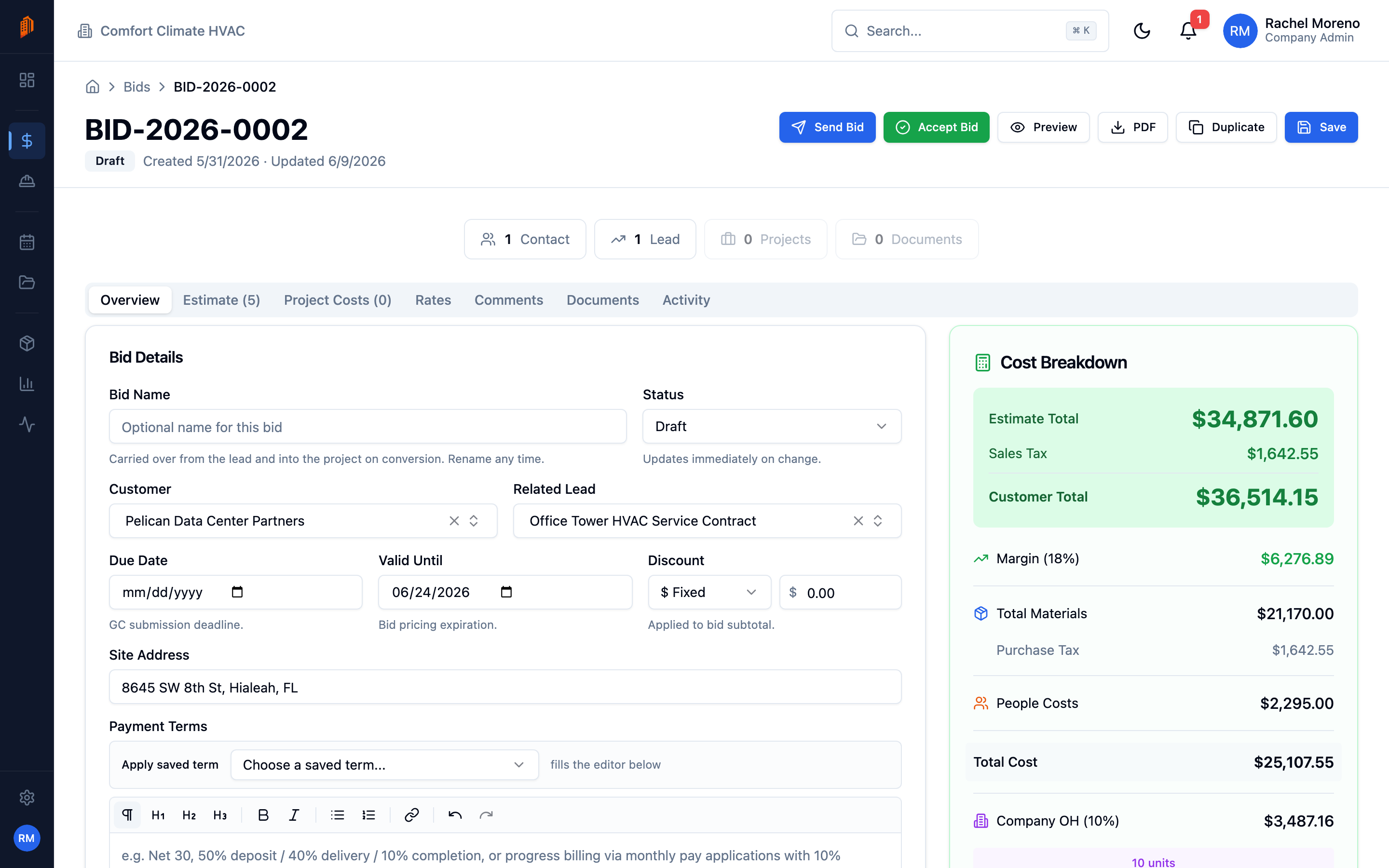
Creating a bid: the estimate pulls material and labor from your catalog, then margin and overhead on the Rates tab roll raw cost up into the customer total.
Start a new bid
Section titled “Start a new bid”-
Open the Bids list. Click Bids in the sidebar.
-
Create the bid. Click New Bid. A new bid opens on its Overview tab. A bid number is assigned automatically the first time you save.
A bid has seven tabs: Overview, Estimate, Project Costs, Rates, Comments, Documents, and Activity. The Comments, Documents, and Activity tabs unlock once you save the bid.
Fill in the details
Section titled “Fill in the details”On the Overview tab, complete the Bid Details card:
- Bid Name – a descriptive name such as “Marina Bay HVAC Retrofit”. It carries into the project if the bid converts.
- Customer – search for an existing contact or create one on the spot.
- Related Lead – optionally link the lead this bid came from.
- Due Date – the GC submission deadline.
- Valid Until – the date your bid pricing expires.
- Discount – an optional fixed ($ Fixed) or percentage (% Percent) discount applied to the bid subtotal.
- Site Address – the job site location.
- Payment Terms and Terms & Conditions – free text, each with a picker to apply a saved clause.
Save the bid
Section titled “Save the bid”Click Save. The bid is created in Draft status and the remaining tabs unlock. From here you can:
- Add line items to build the estimate.
- Set your rates for margin and overhead.
- Add project costs that load into every line.
- Send the bid when it is ready.
BuildWorkPro tracks unsaved changes – the Save button appears whenever you have edits, and you are warned before leaving with unsaved work.