
Creating a Change Order
A change order records a change to a project’s scope and its cost impact. When approved, it adjusts the project’s contract value.
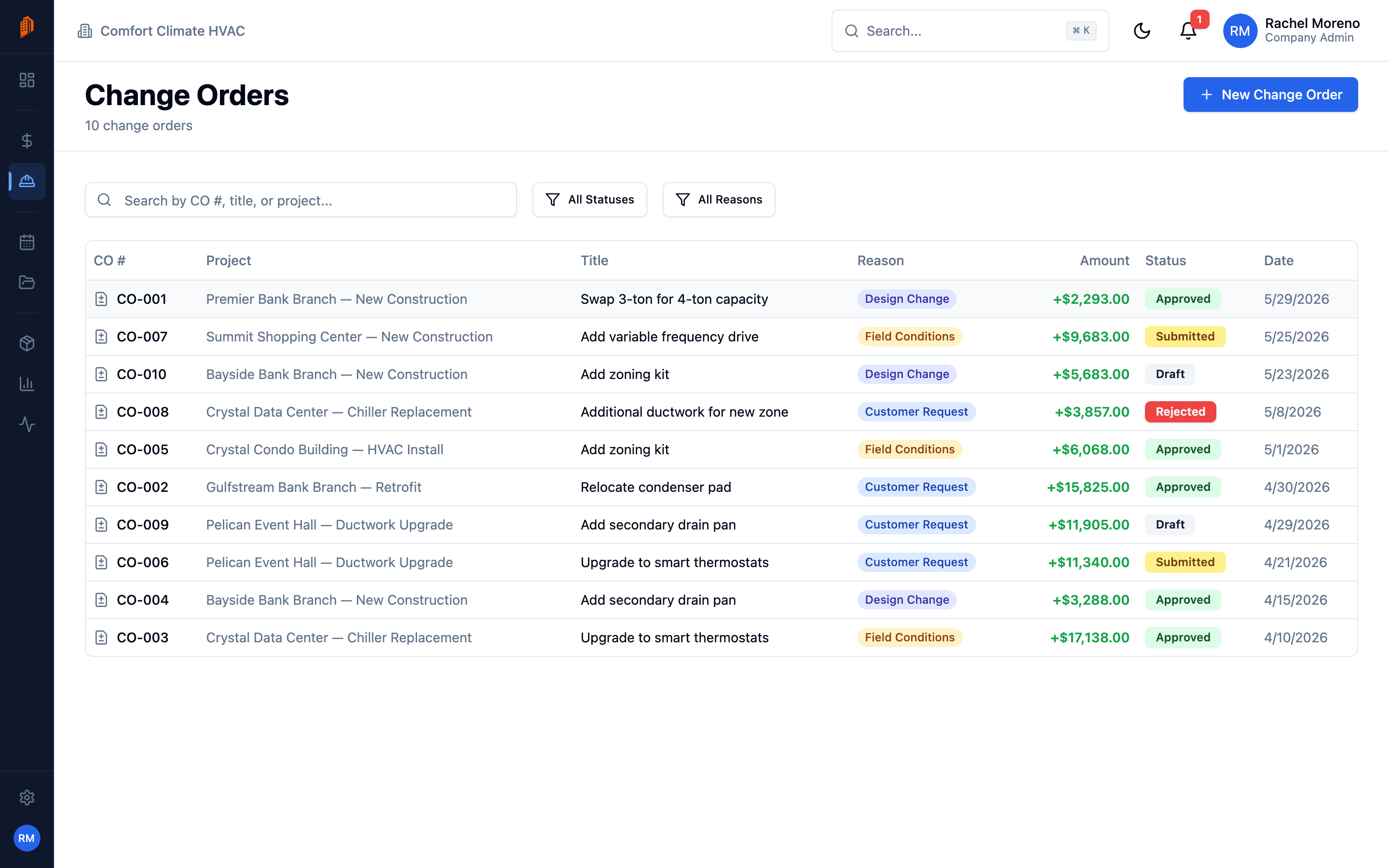
Where change orders live
Section titled “Where change orders live”Open Change Orders from the sidebar to see every change order across your projects, with its CO number, project, title, reason, amount, and status. Filter by status – Draft, Submitted, Approved, Rejected, or Void – or by reason. You can also reach a project’s change orders from the Change Orders tab inside that project.
Create a change order
Section titled “Create a change order”-
Start a new change order. Click New Change Order.
-
Pick the project. Choose the Project the change applies to.
-
Describe the change. Enter a Title, choose a Reason – Customer Request, Field Conditions, Design Change, or Other – and add a Description.
-
Create. The change order is created in Draft with an automatic number like
CO-001, incrementing per project.
Add cost items (marks)
Section titled “Add cost items (marks)”A new change order has no cost yet. Add the priced changes – called marks – on its detail page.
-
Add a mark. Click Add Item to open the change-order mark editor.
-
Set the change. Choose a Change Type – Add, Modify, or Remove – and reference the bid mark it affects if relevant.
-
Price it. Enter the quantity, unit price, and any labor and tax. The line’s amount rolls into the change order total.
The change order total can be positive or negative – a deductive change order lowers the contract value. Change orders capture a cost impact only; there is no separate schedule-impact field.
Pricing a change order mark: add, modify, or remove with material and labor sublines — the contract impact updates as you build it.
What’s next
Section titled “What’s next”- Change order approval – submit and approve a change order.
- PDF and email – send a change order to your customer.