Connect Google (Gmail and Calendar)
Connecting your Google account lets BuildWorkPro:
- Send emails from your Gmail address – bid emails, change order notifications, and pay app updates go out from
you@yourcompany.cominstead ofnoreply@buildworkpro.com. Replies come back to you directly. - Sync project dates to your Google Calendar – BuildWorkPro creates a dedicated calendar in your Google account and pushes project deadlines, phase milestones, task due dates, lead follow-ups, and bid expiry dates to it. Edits in BuildWorkPro update the corresponding calendar event; deletions remove it.
Connecting is optional. Without it, emails still send from noreply@buildworkpro.com and calendar events stay inside BuildWorkPro.
Connecting your account
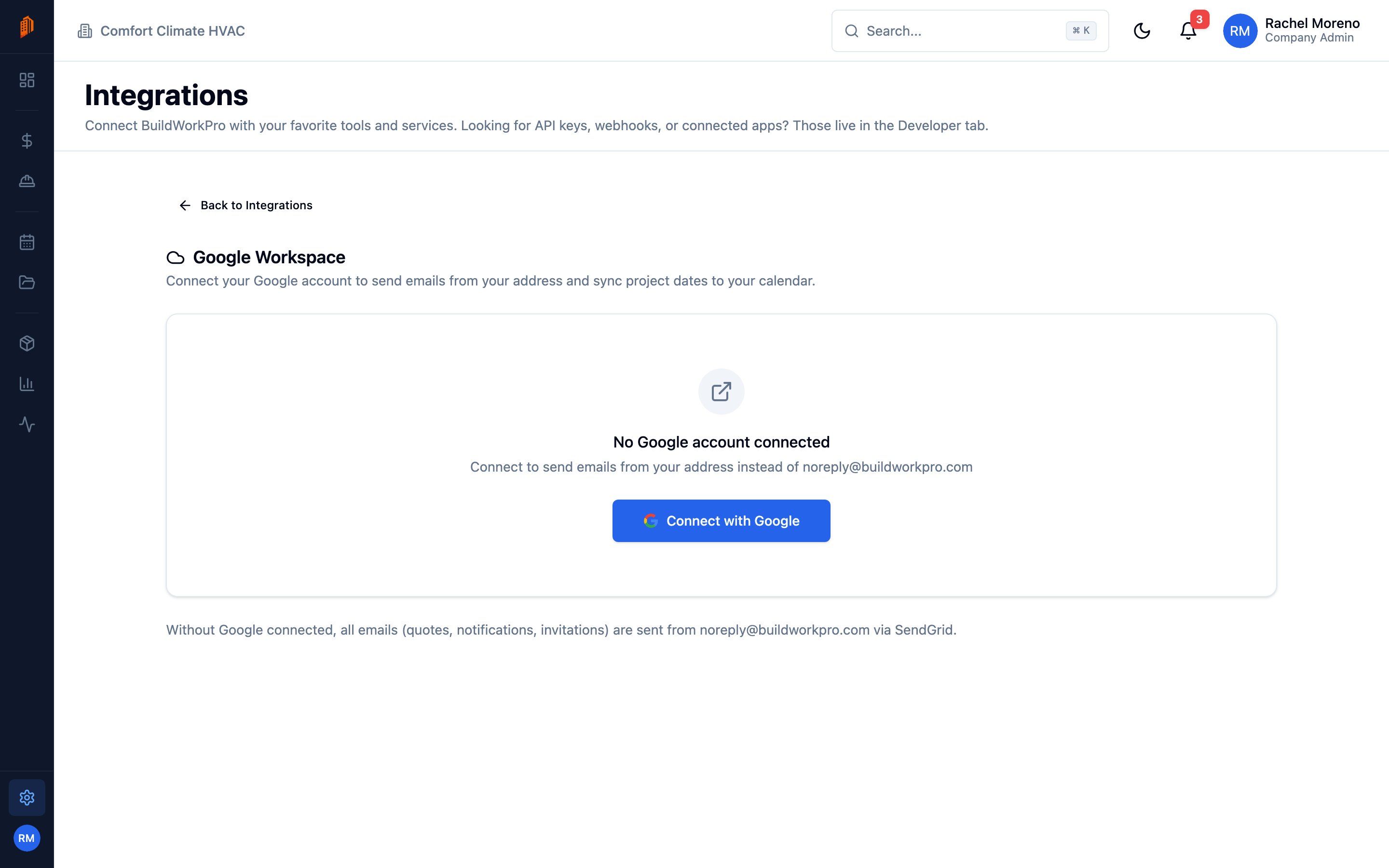
Section titled “Connecting your account”- Go to Settings > Integrations.
- Click the Google Workspace card.
- Click Connect with Google.
- Sign in to your Google account and review the permissions you are granting:
- Send email on your behalf (Gmail)
- Manage your calendars (Google Calendar)
- Click Allow.
You will be redirected back to BuildWorkPro and a “Connected” badge will appear next to your Google account email.
A new calendar named BuildWorkPro is automatically added to your Google Calendar. You can rename or recolor it from Google Calendar without breaking the sync.
Choosing what is enabled
Section titled “Choosing what is enabled”After connecting, you can independently turn each feature on or off without disconnecting your account:
- Gmail – when on, outgoing emails use your Gmail address. When off, emails revert to the default
noreply@buildworkpro.comsender. - Google Calendar – when on, BuildWorkPro pushes project dates to your calendar. When off, no events are created or updated, but existing events stay where they are.
Toggle either feature at Settings > Integrations > Google Workspace.
Permissions we ask for
Section titled “Permissions we ask for”BuildWorkPro requests the minimum scopes required for the features above:
gmail.send– send messages on your behalf. We do not read your inbox, drafts, sent mail, or any other Gmail data. We only send.calendar– create, read, update, and delete events in the BuildWorkPro calendar we add to your account. We do not modify any calendar except the one we create.userinfo.emailanduserinfo.profile– read your Google account name and email so we can show which account is connected.
We do not request access to Google Drive, Contacts, or any other Google product.
What if I see “Reconnection Required”?
Section titled “What if I see “Reconnection Required”?”Google access tokens occasionally expire or get revoked – this can happen if you change your Google password, sign out of all devices, or revoke the BuildWorkPro app from Google’s security settings. When that happens:
- Go to Settings > Integrations > Google Workspace.
- Click Disconnect.
- Click Connect with Google and sign in again.
Your feature toggles, calendar mappings, and email history are preserved across reconnect.
Disconnecting your account
Section titled “Disconnecting your account”- Go to Settings > Integrations > Google Workspace.
- Click Disconnect.
- Confirm.
After disconnecting:
- Outgoing emails revert to
noreply@buildworkpro.com. - Your BuildWorkPro calendar in Google Calendar stops receiving updates. Existing events stay – nothing is deleted from your calendar.
- Tokens are purged from BuildWorkPro and can no longer be used.
You can reconnect at any time.
Troubleshooting
Section titled “Troubleshooting”“Connect with Google” sends me to a Google error page. This usually means your administrator has restricted third-party app access in Google Workspace. Ask your admin to allow BuildWorkPro under Google Admin > Security > API Controls.
Bid emails are still going from noreply@buildworkpro.com after I connected.
Check that the Gmail toggle is on at Settings > Integrations > Google Workspace. Connecting your account does not automatically enable Gmail – the toggle is separate so you can connect for Calendar only if you prefer.
Calendar events are not appearing in my Google Calendar. Make sure the BuildWorkPro calendar is checked in your Google Calendar’s left sidebar – if it is unchecked, events still sync but are hidden from view.
An email I sent through BuildWorkPro shows up in my Gmail Sent folder. This is expected. Because BuildWorkPro sends through your Gmail account, the message lands in your Sent folder just like any other email you write.