
Profile and Security
The Profile and Security tabs in Settings control your own account – your details, your password, and how you verify sign-ins. They apply to you, not the whole organization, so every role can use them.
Your profile
Section titled “Your profile”Open Settings -> Profile to update:
- First Name and Last Name.
- Email – on password-based accounts, changing it requires your current password; the new address must then be verified.
- Email Signature – appended to documents you email to customers (bids, change orders, invoices, and pay applications).
Your Username and Role are shown but cannot be changed here – ask a Company Admin to change your role.
Password
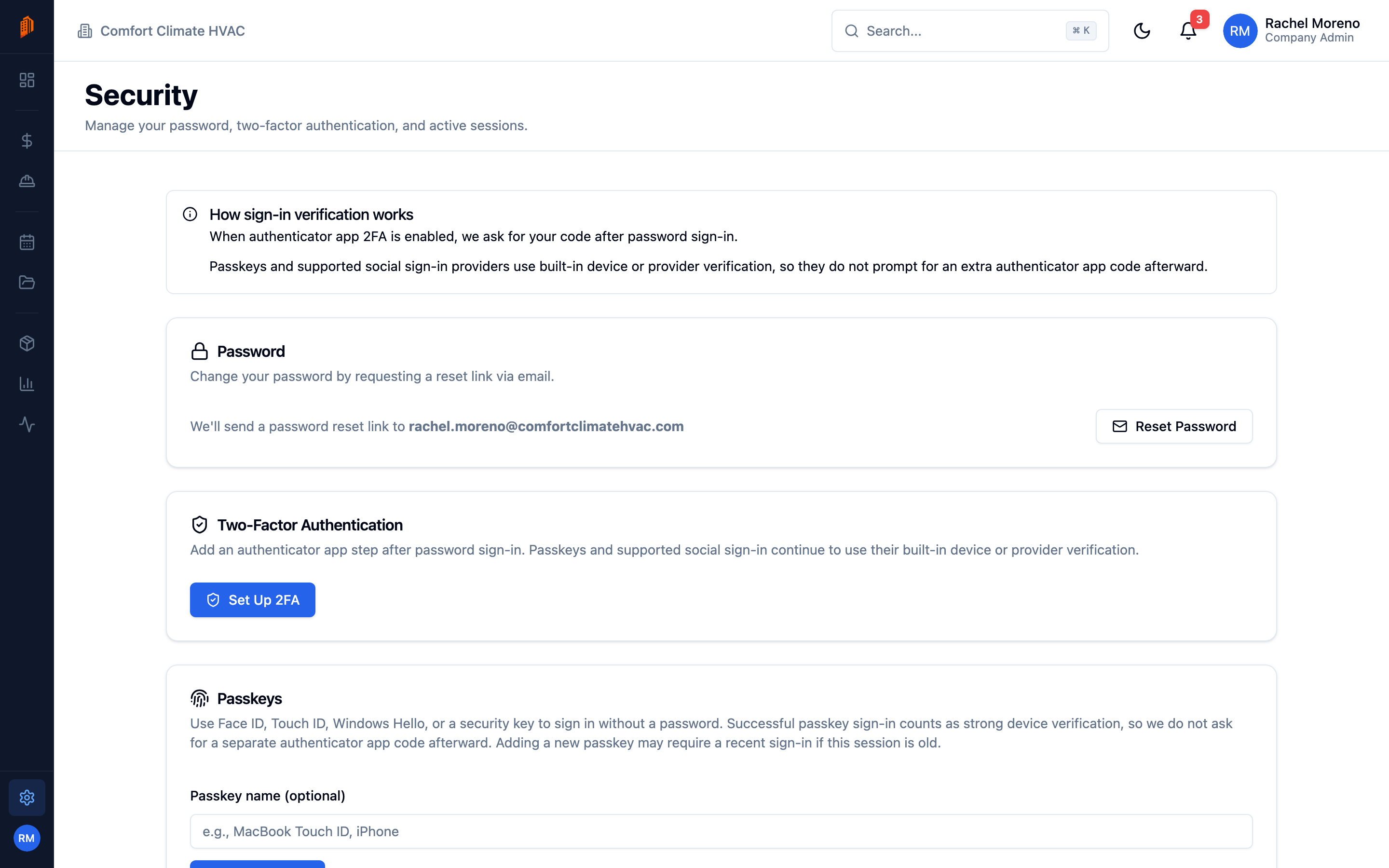
Section titled “Password”On Settings -> Security, the password card sends a reset link to your email rather than taking a new password inline. Click Reset Password (or Set Password if your account signs in with Google or Apple) and follow the link.
Two-factor authentication
Section titled “Two-factor authentication”Two-factor authentication (2FA) adds a one-time code from an authenticator app on top of your password.
-
Start setup. On the Security tab, click Set Up 2FA and confirm your password.
-
Scan the code. Scan the QR code with an authenticator app such as Google Authenticator or Authy, or enter the key by hand.
-
Verify. Enter the 6-digit Verification Code and click Verify and Enable.
-
Save your backup codes. Copy or download the backup codes shown, then confirm you have saved them. Use them to sign in if you lose your authenticator.
Once enabled, a 2FA Active badge appears. Click Disable 2FA (password plus a current code required) to turn it off.
Passkeys
Section titled “Passkeys”A passkey lets you sign in with Face ID, Touch ID, Windows Hello, or a hardware security key instead of a password.
-
Add a passkey. On the Security tab, click Add Passkey and optionally name it.
-
Confirm. Complete your device’s prompt. If your account already has a password or 2FA, you re-authenticate first.
Each passkey can be renamed or removed. Passkeys backed up to your device’s keychain show a Synced badge.
Connected accounts
Section titled “Connected accounts”The Connected Accounts card links a Google or Apple account for one-click sign-in. You can link one social provider at a time, and you can only disconnect it if another sign-in method remains.
What’s next
Section titled “What’s next”- Notifications – choose which alerts you receive.
- Team and roles – what your role can do.