
PDF and Email
Pay applications and change orders both render to a PDF and can be emailed to your customer with the PDF attached. The flow is the same for each.
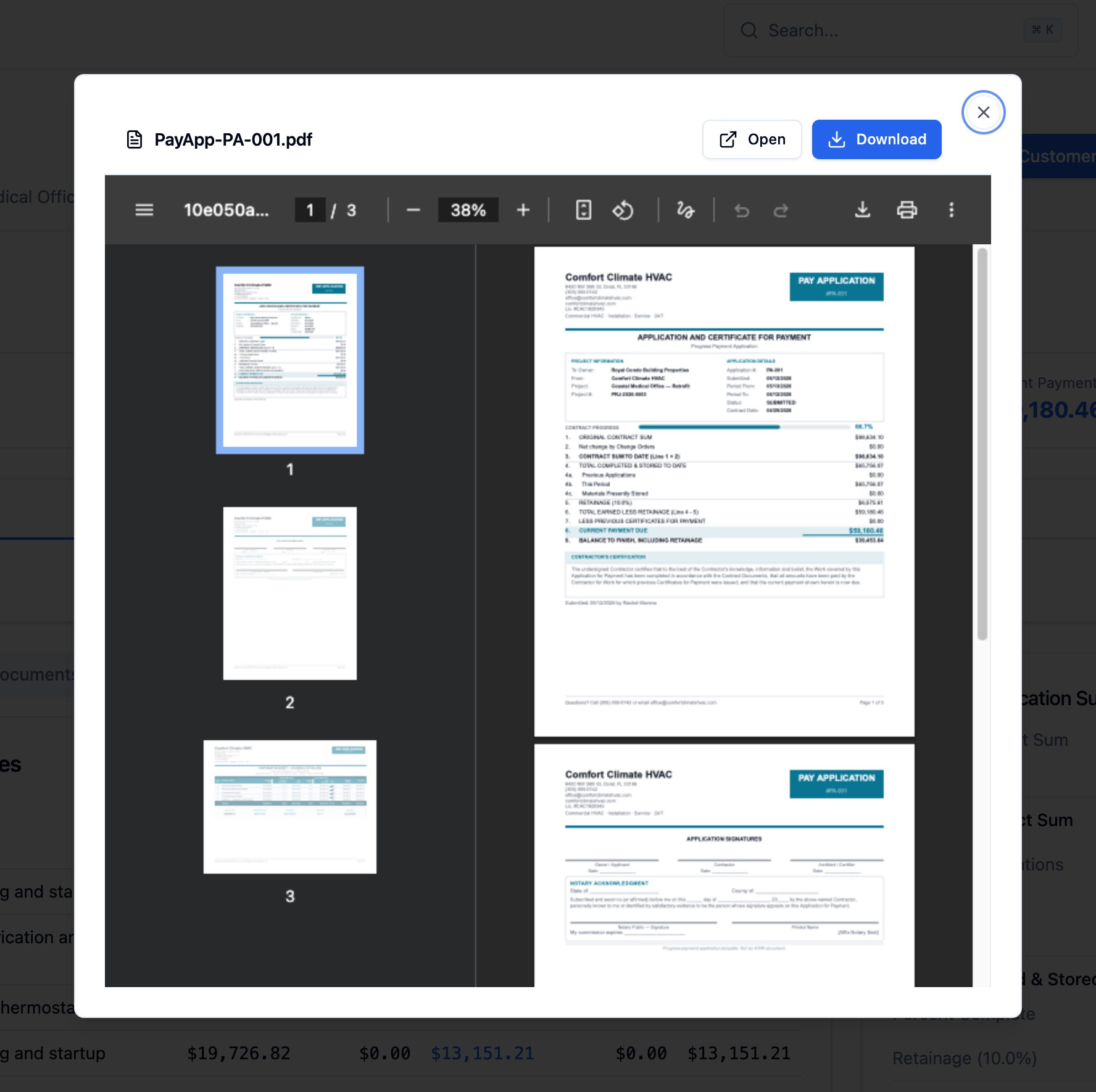
Preview and download a PDF
Section titled “Preview and download a PDF”On a pay app or change order detail page:
- Click Preview to open the PDF in a dialog. From there you can Open it in a new tab or Download it.
- Click Download PDF to save it directly. Files are named after the document, for example
PayApp-P-1024-PA001.pdforChangeOrder-CO-001.pdf.
Email it to your customer
Section titled “Email it to your customer”-
Open the send dialog. Click Send to Customer.
-
Choose a template. Pick an Email Template to prefill the subject and body, or write your own.
-
Set recipients. Fill in To, and add Cc or Bcc as needed.
-
Send. Review the message and send. The PDF attaches automatically.
The email body supports merge fields – such as the document number, project name, and amount – so a template fills in each customer’s details.
What’s next
Section titled “What’s next”- Approval workflow – approve a pay app before sending it.
- Change order approval – the matching flow for change orders.