
Contacts
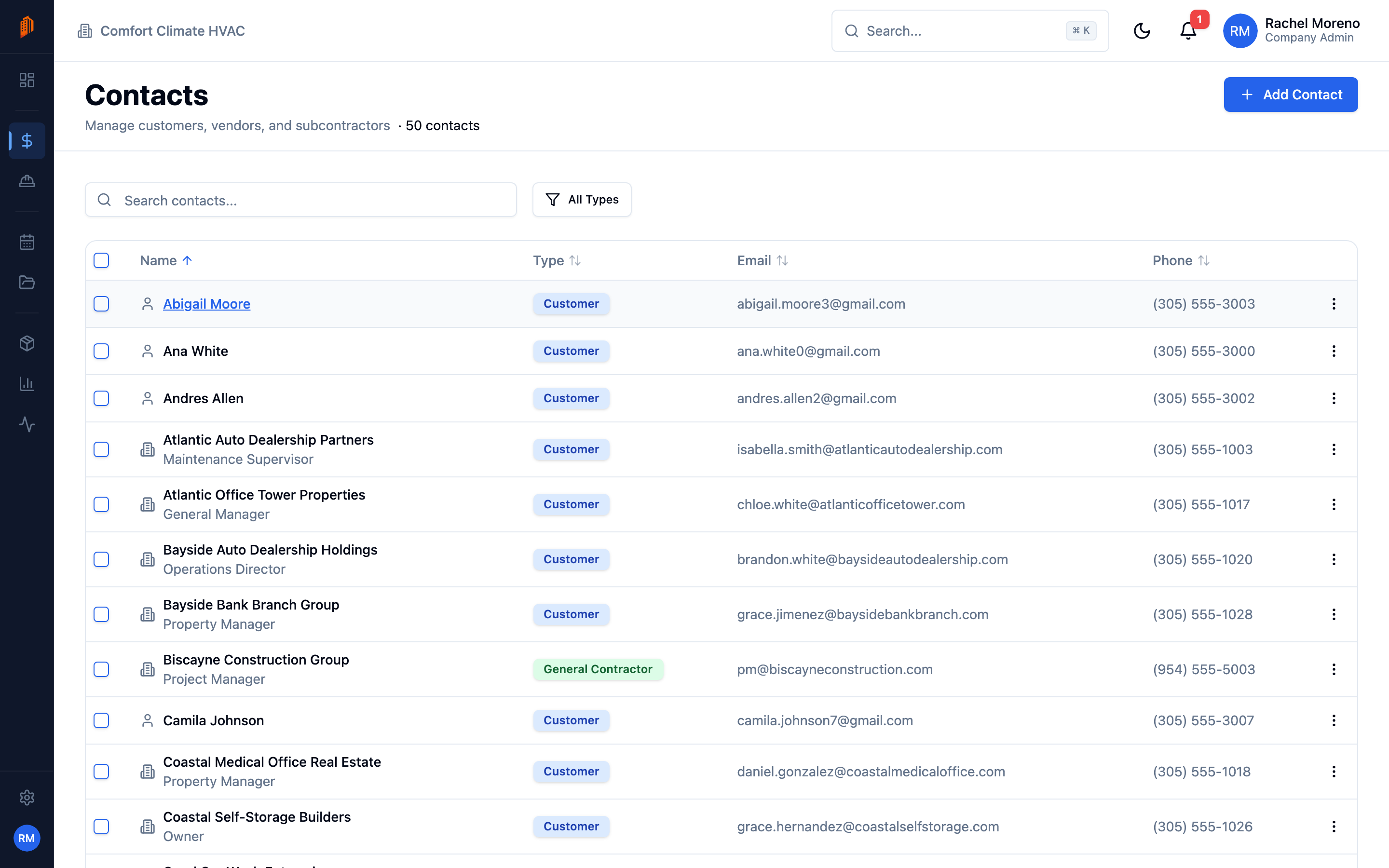
Contacts are the people and companies you work with – customers, general contractors, vendors, and more. Organize them here so the right person is one search away when you build a bid, project, or pay app. Open Contacts from the sidebar.
Contact types
Section titled “Contact types”Every contact has a type that describes the relationship: Customer, General Contractor, Architect, City, HOA, Vendor, Subcontractor, Employee, or Other. Filter the list by type to narrow it.
Create a contact
Section titled “Create a contact”-
Start a new contact. Click Add Contact.
-
Choose a type. Pick the Contact Type.
-
Enter details. Add the company or person’s name, Position / Role, and contact details. At least one of Email, Phone, or Mobile is required.
-
Save. The contact joins your list.
Contacts can be hierarchical – set a Parent Company to nest an employee under the company they work for.
Import contacts from CSV
Section titled “Import contacts from CSV”Bulk import is handled in Settings, not on the Contacts list.
-
Open Data Management. Go to Settings -> Data Management.
-
Import contacts. In the Import Data card, choose Contacts and download the sample CSV for the column layout.
-
Upload and map. Upload your file, map its columns, and run the import.
See data management for the full import and export flow. Importing contacts requires Company Admin.
What’s next
Section titled “What’s next”- Sales pipeline – track leads tied to your contacts.
- Leads – work a lead and convert it.