
Navigation and Search
BuildWorkPro has two ways to get anywhere: the sidebar for browsing and the command palette for jumping straight to a record.
The sidebar
Section titled “The sidebar”The sidebar is a dark navy icon rail down the left edge. Click an icon to open its flyout menu. The main destinations are:
- Dashboard – your home screen.
- Sales – Contacts, Pipeline, and Bids.
- Projects – All Projects, Change Orders, Pay Apps, Invoices, Site Logs, and Time Tracking.
- Calendar – the app-wide calendar.
- Documents – your document library.
- Products – your product catalog.
- Reports – pipeline, bid, project, and activity reports.
- Activity – the org-wide activity history.
- Settings – account and company settings, at the bottom of the rail.
What you see depends on your role. Field Crew, for example, does not see Bids or billing.
On a phone, the sidebar collapses to a bottom bar with Dashboard, Pipeline, Projects, Site Logs, and Time, plus a More button for everything else.
The command palette
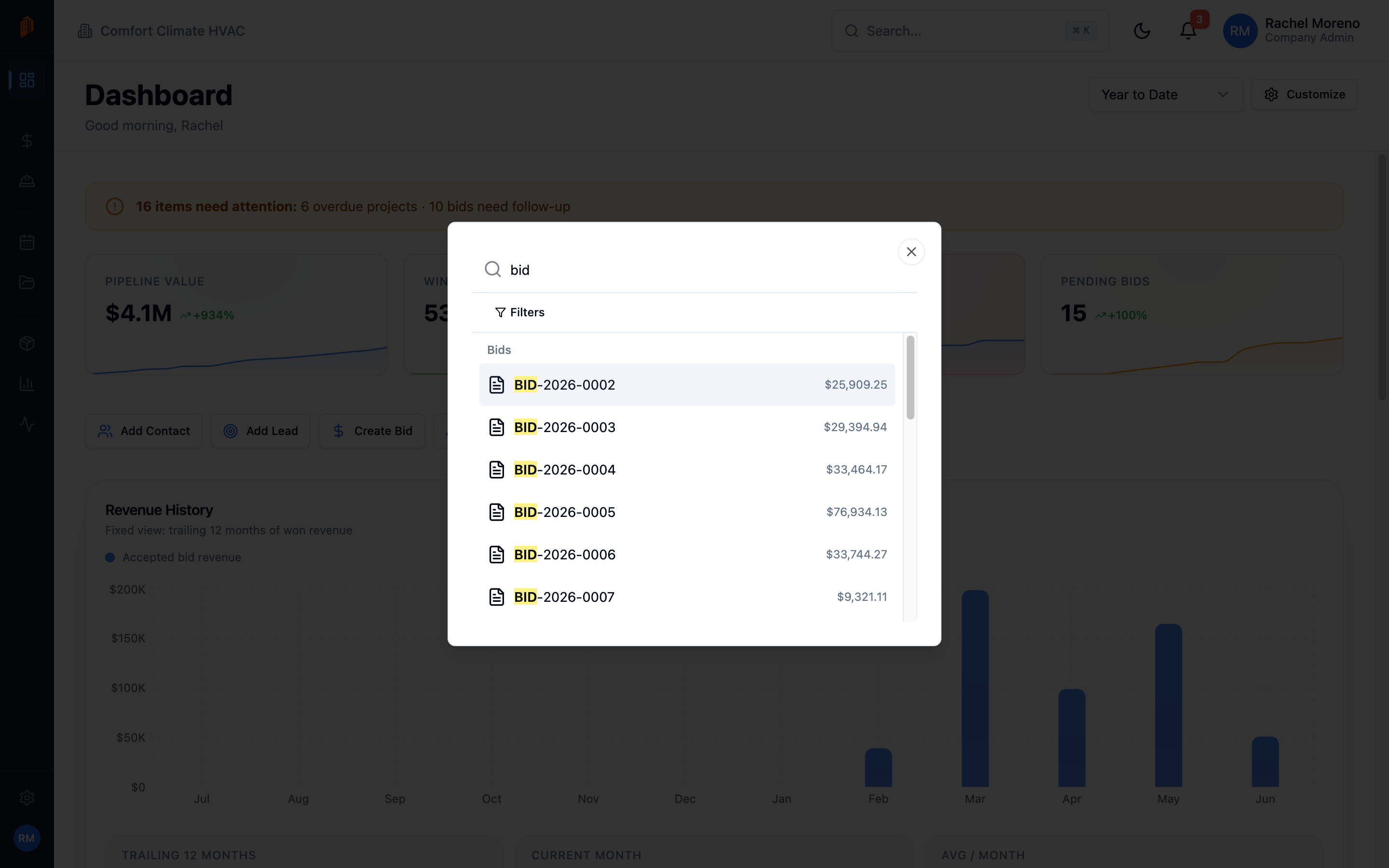
Section titled “The command palette”The command palette is the fastest way to find a specific record. Press Cmd+K on a Mac or Ctrl+K on Windows or Linux. You can also click the search box in the header.
Start typing and the palette searches across your whole workspace:
Contacts, Leads, Projects, Bids, Change Orders, Pay Apps, Invoices, Site Logs, Documents, Products, Tasks, and CSV Import Templates.
Select a result to jump straight to it. Before you type, the palette also lists quick actions and your recent searches.
Keyboard shortcuts
Section titled “Keyboard shortcuts”| Shortcut | Action |
|---|---|
| Cmd+K / Ctrl+K | Open the command palette |
| Cmd+Enter / Ctrl+Enter | Save the open form |
| Esc | Close a dialog, flyout, or inline editor |
What’s next
Section titled “What’s next”- Your dashboard – the home screen you land on.
- Your first project – start tracking work.