
Creating a Pay App
A pay application bills a customer for the work completed on a project in a billing period. Each pay app carries a schedule of values, tracks retainage, and moves through an approval workflow.
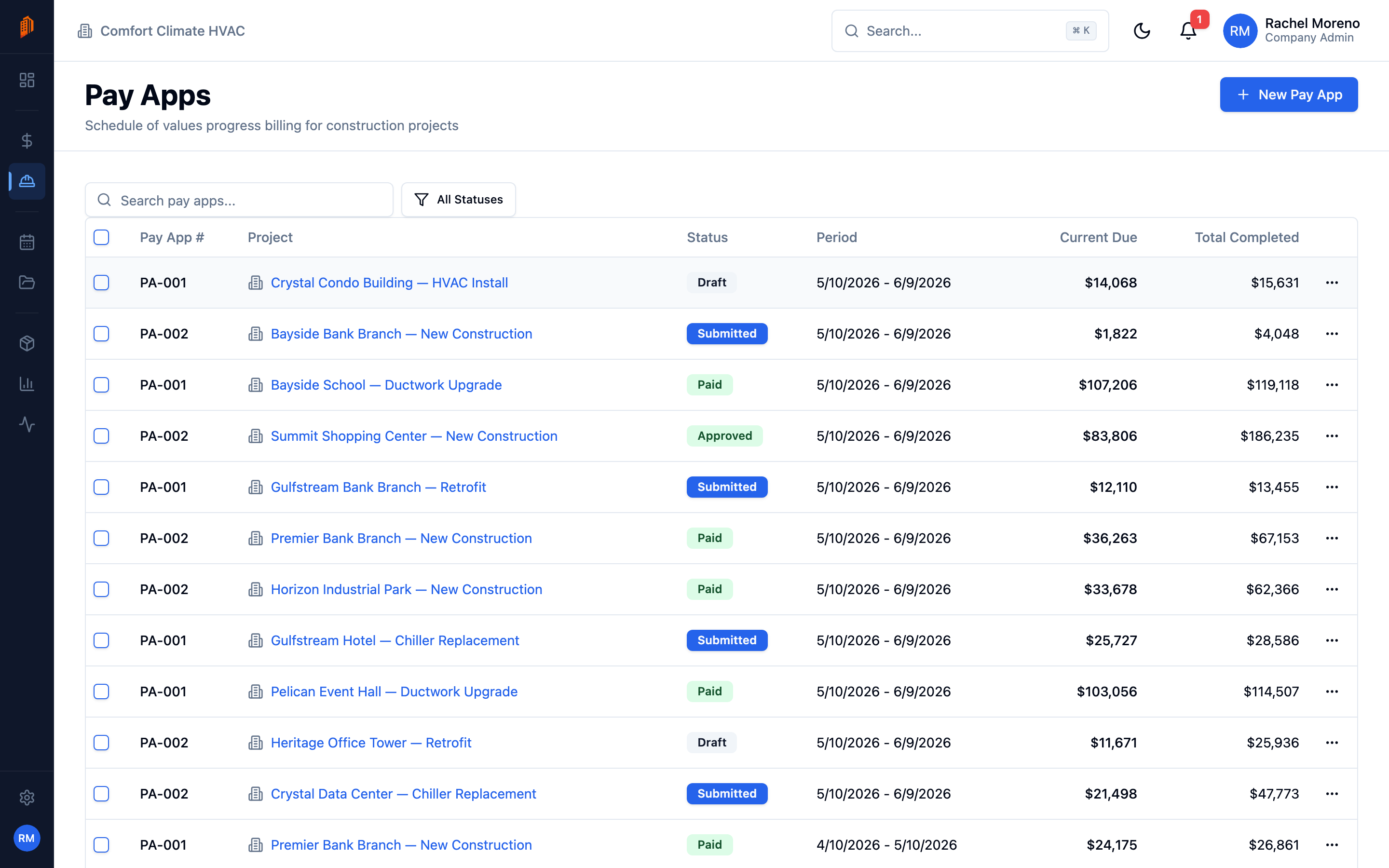
Where pay apps live
Section titled “Where pay apps live”Open Pay Apps from the sidebar to see every pay app across your projects. The list shows each pay app’s number, project, status, billing period, current amount due, and total completed to date. Filter by status – Draft, Submitted, Approved, Rejected, or Paid – or search by number or project.
You can also reach a project’s pay apps from the Pay Apps tab inside that project.
Create a pay app
Section titled “Create a pay app”-
Start a new pay app. Click New Pay App.
-
Pick the project. Choose the Project this pay app bills against. A pay app is always tied to one project.
-
Set the period and terms. Set Period Start and Period End. The Original Contract Sum and Change Orders Total prefill from the project’s accepted bid and approved change orders. Set Retainage % (defaults to 10).
-
Create. The pay app is created in Draft and opens on its detail page.
BuildWorkPro assigns the pay app number automatically as {project number}-PA001, incrementing per project. Leave the Pay App Number field blank to auto-generate, or set your own.
What’s next
Section titled “What’s next”- Schedule of values – enter line items and report progress.
- Approval workflow – submit, approve, and mark a pay app paid.
- PDF and email – send a pay app to your customer.