
Phases and Tasks
Phases and tasks give a project structure. Open a project and click the Phases & Tasks tab. Phases are the major stages of the job; tasks are the work inside each phase.
Phases & Tasks: add phases with the Add Phase control, then track the tasks inside each phase with priorities, assignees, and progress.
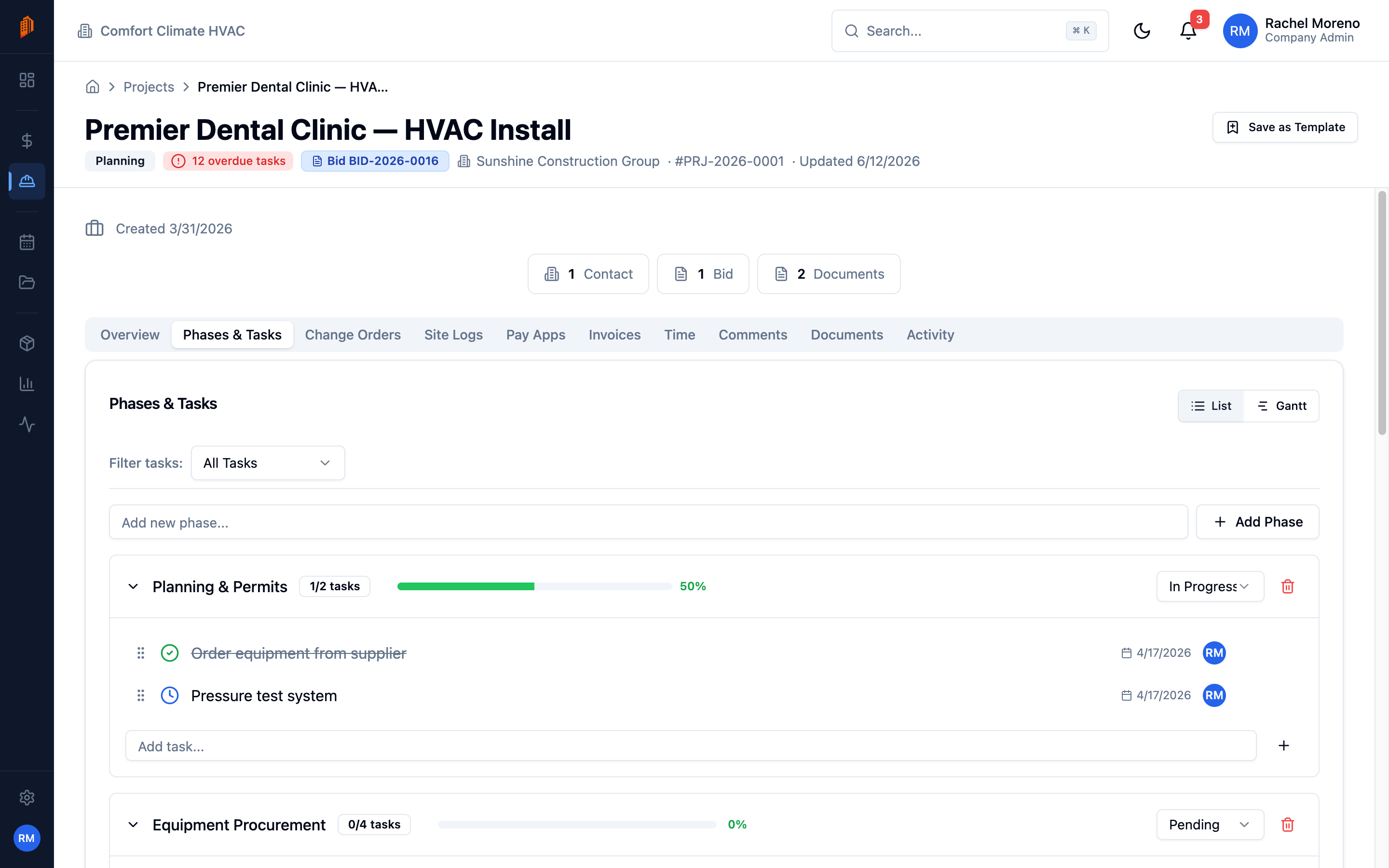
Add a phase
Section titled “Add a phase”-
Open Phases & Tasks. Open the project and click the Phases & Tasks tab.
-
Name the phase. Type a name in the Add new phase… field and click Add Phase.
A phase has its own status – Pending, In Progress, or Completed – which you set from the phase header.
Add a task
Section titled “Add a task”Each phase has an Add task… field. Type a task name and press Enter or click the add button. New tasks start in the To Do status.
Tasks have:
- Status – To Do, In Progress, or Done. Click the status dot on a task to cycle through the three.
- Priority – Low, Medium, High, or Urgent.
- Assignee – the team member responsible.
Drag tasks within a phase to reorder them.
Filter tasks
Section titled “Filter tasks”The Filter tasks control narrows the list to:
- All Tasks – everything in the project.
- Overdue – tasks past their end date that are not done.
- Unassigned – tasks with no assignee.
Schedule a task
Section titled “Schedule a task”Click a task to open the Edit Task dialog. There you set:
- Start Date and Duration (days) – BuildWorkPro counts workdays and skips weekends to compute the end date.
- End Date – set directly, or let the duration calculate it.
- Assignee and Priority.
These dates drive the Gantt chart.
Checklists and dependencies
Section titled “Checklists and dependencies”The Edit Task dialog also holds two ways to add detail:
- Checklist – break a task into smaller items. Type in Add a checklist item… and check items off as you go.
- Dependencies – under This task depends on:, link the tasks that must finish first. BuildWorkPro highlights the project’s critical path from these links.
What’s next
Section titled “What’s next”- Gantt chart – see and adjust the schedule visually.
- Projects overview – statuses, views, and filters.