
Project Templates
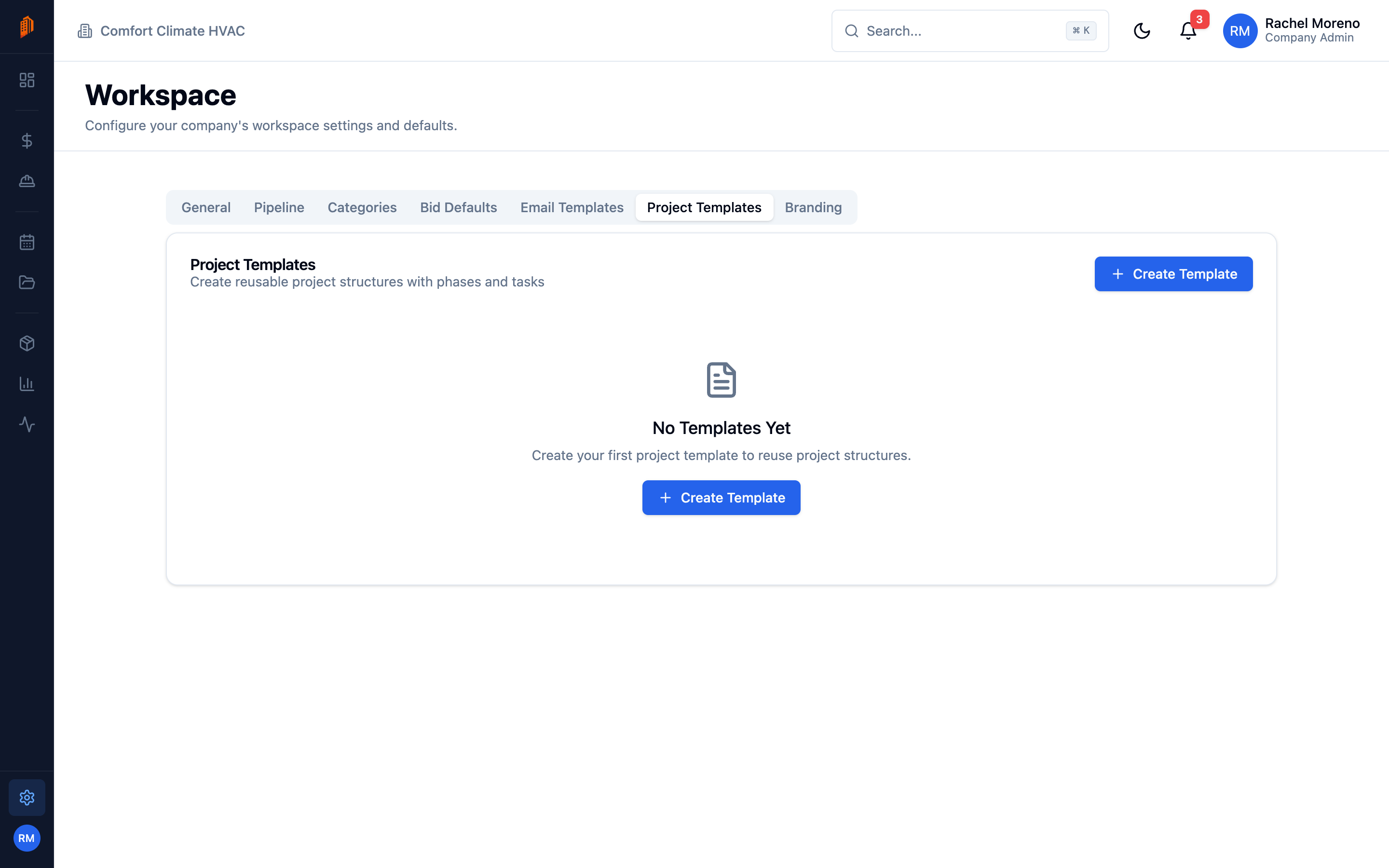
A project template captures a reusable set of phases, tasks, and checklist items. Apply one when you create a project so recurring job types start with their work already laid out.
Manage templates
Section titled “Manage templates”Templates live in Settings -> Workspace -> Project Templates. From there you can create, edit, duplicate, and delete templates. A template editor lets you build phases, tasks, and checklist items from scratch.
Save a project as a template
Section titled “Save a project as a template”You can turn an existing project into a template instead of building one by hand.
-
Open the project. Open the project whose structure you want to reuse.
-
Save as template. Click Save as Template, enter a Template Name, and confirm.
This copies the project’s phases and tasks – including task names, descriptions, priorities, durations, and checklist items – into a new template.
Create a project from a template
Section titled “Create a project from a template”-
Start a new project. Click New Project from the Projects list.
-
Pick a template. In the Start from template field, choose a template. Leave it on No template – start blank to skip. A preview shows how many phases, tasks, and checklist items will be created.
-
Save. The project is created with the template’s phases and tasks already in place.
What’s next
Section titled “What’s next”- Phases and tasks – adjust the work after creating from a template.
- Projects overview – create and track projects.