
Projects Overview
The Projects module is where you track active and completed work. Open it from Projects in the sidebar. The list shows every project with its number, status, and key dates, and you can switch between three layouts.
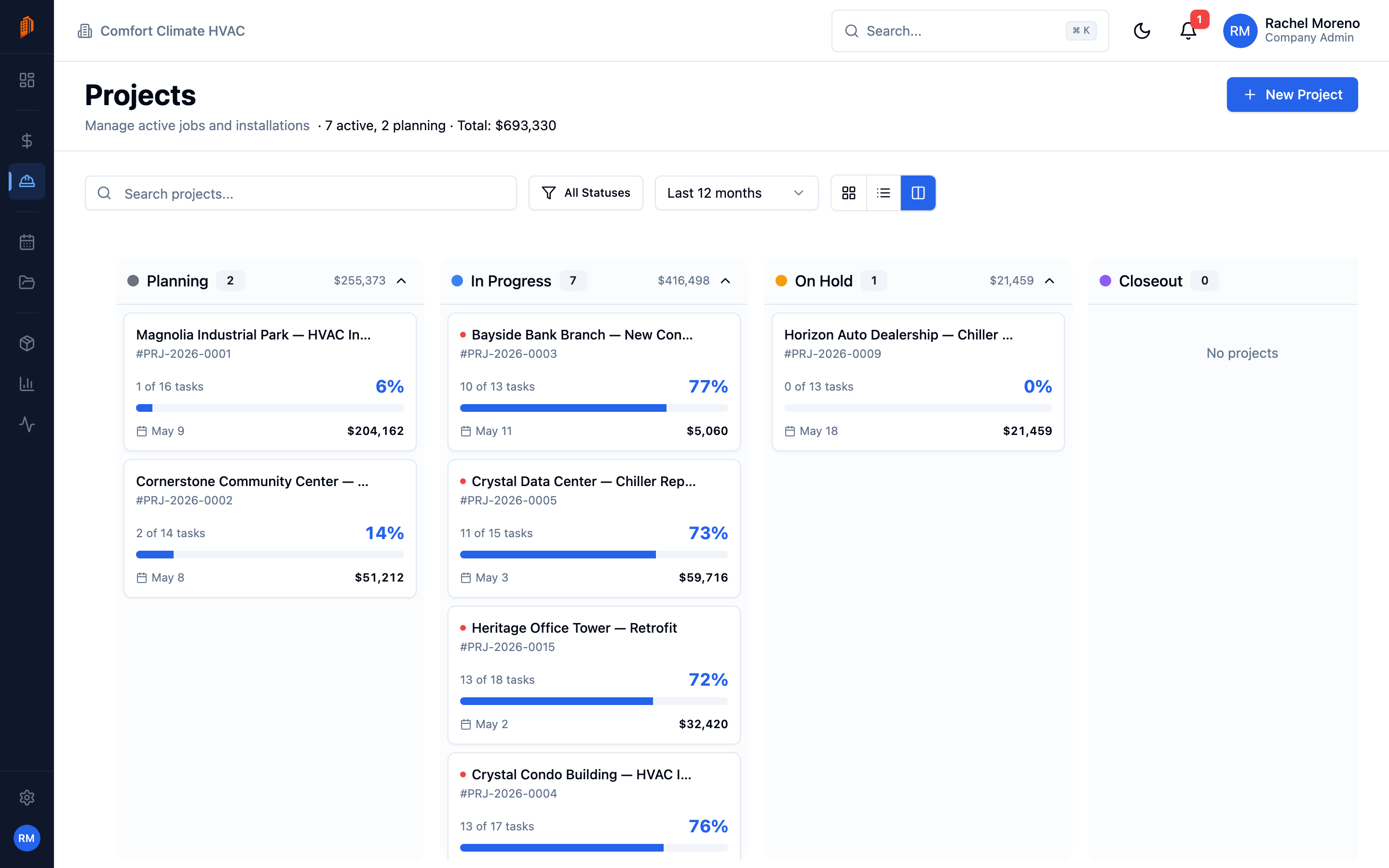
Choose a view
Section titled “Choose a view”The toolbar has a view toggle at the top right. Your choice is remembered the next time you open the list.
- Kanban – projects as cards grouped into status columns. This is the default. Drag a card to another column to change its status.
- Card – projects as a grid of cards.
- Table – a dense row-per-project table. Select rows to delete in bulk.
Find a project
Section titled “Find a project”The toolbar above the list has:
- Search – match on project name, number, or description.
- All Statuses – filter to one or more statuses.
- Filter by last activity – narrow to projects touched recently.
The subtitle under the title summarizes the list, for example “8 active, 3 planning – Total: $1.2M”.
Project statuses
Section titled “Project statuses”A project moves through six statuses:
- Planning – scoped but not started.
- In Progress – active work.
- On Hold – paused.
- Closeout – wrapping up punch list and paperwork.
- Completed – finished.
- Cancelled – stopped before completion.
In Kanban view, drag a card between columns to update its status. In Card or Table view, use the row menu’s Move to Status option.
Create a project
Section titled “Create a project”-
Start a new project. Click New Project. A form opens in a dialog.
-
Enter the details. Give the project a name and set its type, status, and dates. If you have project templates, you can pick one under Start from template.
-
Save. The project is created and opens on its detail page.
Inside a project
Section titled “Inside a project”A project detail page is organized into tabs:
- Overview – name, customer, type, status, dates, and budget.
- Phases & Tasks – the work breakdown, with a List and a Gantt view.
- Change Orders – scope changes for this project.
- Site Logs – daily field reports.
- Pay Apps – progress billing.
- Invoices – bills raised against the project.
- Time – hours logged to the project.
- Comments – the discussion thread.
- Documents – files attached to the project.
- Activity – a history of every change.
The Change Orders, Site Logs, and Pay Apps tabs show a live count of their records.
What’s next
Section titled “What’s next”- Phases and tasks – break the work down and schedule it.
- Project templates – reuse a phase-and-task structure.
- Documents, comments, and activity – collaborate on a project.