
Change Order Approval
A change order moves through an approval workflow much like a pay app. Approving one adjusts the project’s contract value by the net amount of its marks.
Change order approval: the stepper tracks Draft → Submitted → Approved, and the Contract Flow panel shows the change order’s net amount rolling into the project’s contract value.
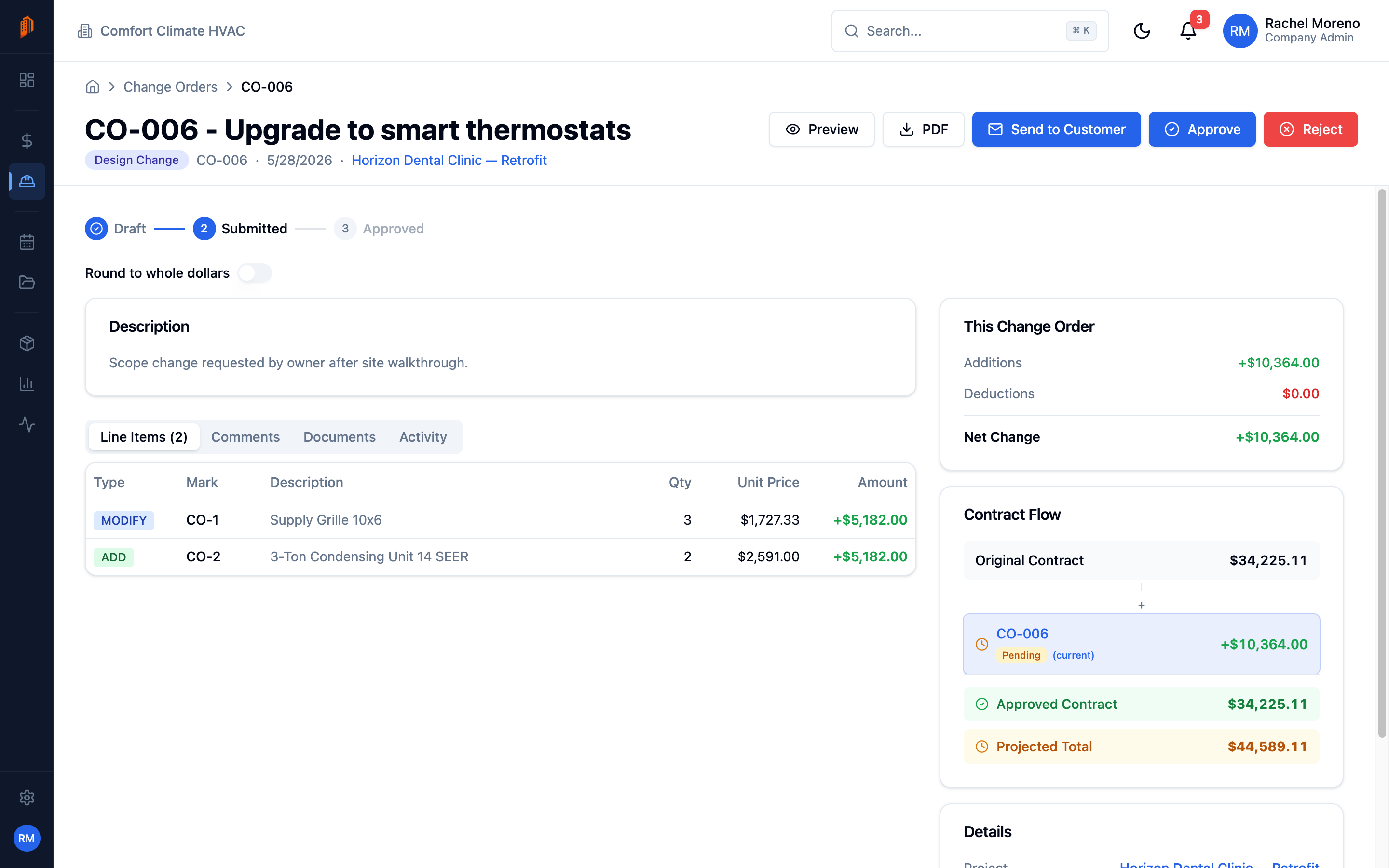
Change order statuses
Section titled “Change order statuses”- Draft – being prepared and edited.
- Submitted – sent for approval.
- Approved – accepted; the project contract value is updated.
- Rejected – declined.
- Void – an approved change order that was later cancelled.
Submit for approval
Section titled “Submit for approval”-
Add the marks. Make sure the change order has at least one cost item – you cannot submit an empty one.
-
Submit. Click Submit. The change order moves to Submitted.
Approve, reject, or void
Section titled “Approve, reject, or void”-
Review. Open the submitted change order and check its marks and total.
-
Decide. Click Approve to accept it, or Reject to decline. Approving adjusts the project’s contract value by the change order’s net amount.
-
Void if needed. To cancel an approved change order, click Void. This reverses its effect on the contract.
What’s next
Section titled “What’s next”- Creating a change order – document the change and add marks.
- PDF and email – send the change order to your customer.