
Notifications
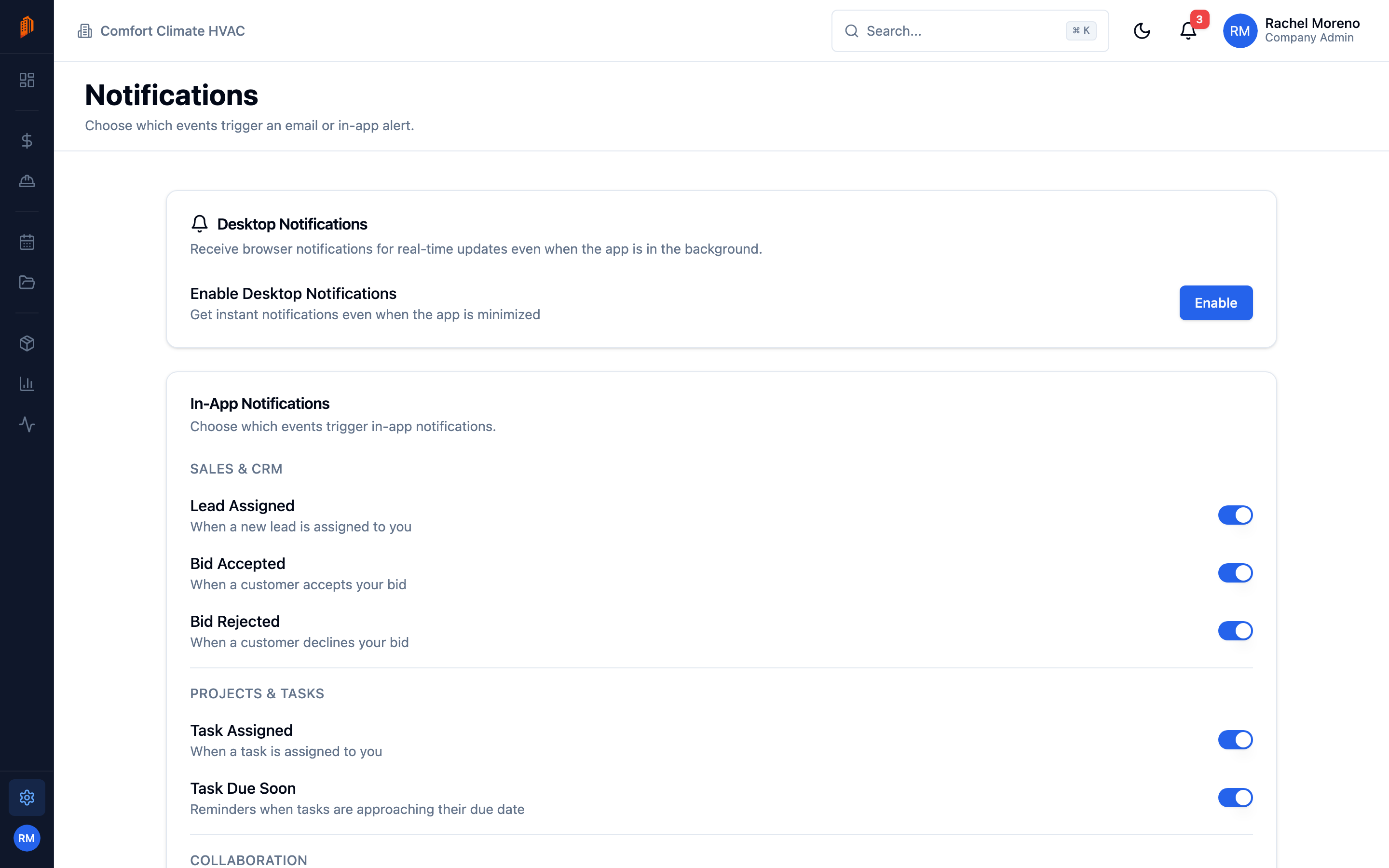
The Notifications tab controls the alerts you personally receive. Settings here apply to your account only, and every role can manage them. Each toggle saves on its own – there is no separate Save button.
Desktop notifications
Section titled “Desktop notifications”A single toggle asks your browser or operating system for permission to show desktop notifications. Click Enable and allow the prompt.
In-app notifications
Section titled “In-app notifications”In-app notifications appear in the bell menu inside BuildWorkPro. Toggle them by category:
- Sales & CRM – Lead Assigned, Bid Accepted, Bid Rejected.
- Projects & Tasks – Task Assigned, Task Due Soon.
- Collaboration – mentions and comments.
Email notifications
Section titled “Email notifications”Email notifications are sent to your address. Toggle them by category:
- Sales – Lead Assigned, Bid Accepted, Bid Rejected, Bid Expired.
- Pay Applications – Submitted, Approved, Rejected.
- Change Orders – Submitted, Approved, Rejected, Voided.
- Projects & Tasks – Task Due Soon.
- Digests – Daily and Weekly summaries.
What’s next
Section titled “What’s next”- Profile and security – your account and sign-in.
- Connect Google – send email from your own address.