Your Dashboard
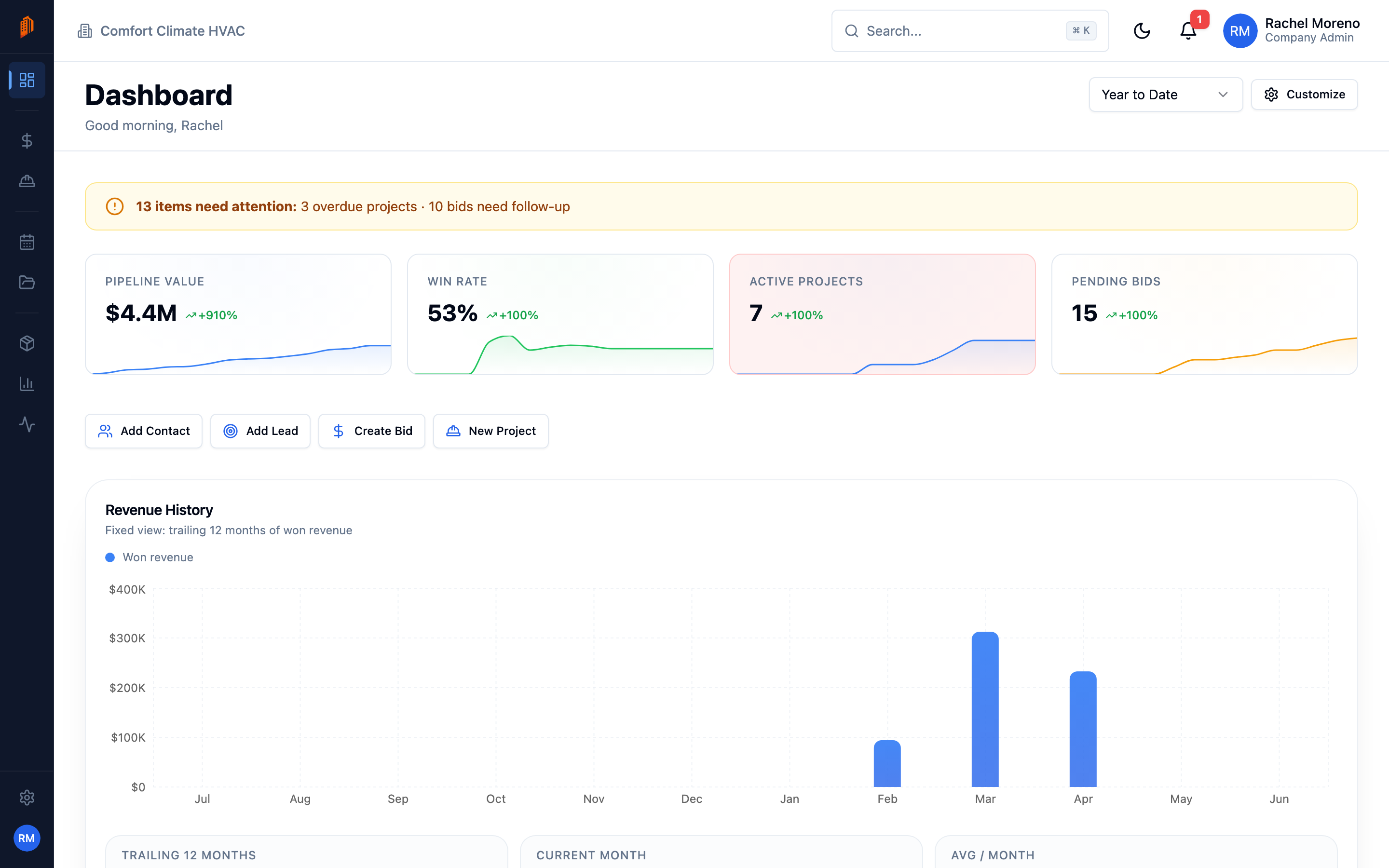
The dashboard is your home screen. It opens whenever you sign in and gives you a snapshot of your pipeline, projects, and recent activity. A time-based greeting at the top welcomes you by name.
KPI cards
Section titled “KPI cards”A row of stat cards across the top tracks your key numbers. By default you see four:
- Pipeline Value – the total value of open leads.
- Win Rate – the share of decided bids you have won.
- Active Projects – projects currently in progress.
- Pending Bids – bids still in draft or sent.
Each card links to a filtered list, so clicking Active Projects opens your in-progress projects. Other available cards include Contract Value, Planning, Overdue, Completed, Won Leads (est.), and Contacts.
Quick actions
Section titled “Quick actions”Below the cards, quick-action buttons start the most common tasks without leaving the dashboard:
- Add Contact – opens the new-contact form.
- Add Lead – opens the new-lead form.
- Create Bid – starts a new bid.
- New Project – opens the new-project form.
You only see the actions your role allows. A Viewer, who cannot create records, sees none of them.
Widgets
Section titled “Widgets”The rest of the dashboard is a grid of widgets you can rearrange from the Customize panel. They include:
- Revenue History – revenue over time.
- This Week Summary – what is due and happening this week.
- Pipeline & Bids – open pipeline and bid activity.
- Project Status – a breakdown of projects by status.
- Win / Loss – decided bids, won versus lost.
- Upcoming Deadlines, At Risk, Project Map, Site Log Activity, and Projects by Type.
Alerts and getting started
Section titled “Alerts and getting started”When something needs attention – an overdue project, a stale lead, or a bid that needs follow-up – a banner appears at the top with a link straight to it.
If your workspace is brand new, a Getting Started card appears above your widgets and points you to your first contact, lead, project, or bid. It disappears once you have data.
What’s next
Section titled “What’s next”- Navigation and search – move around the app and find anything fast.
- Your first project – create a project from the dashboard.