
Site Logs
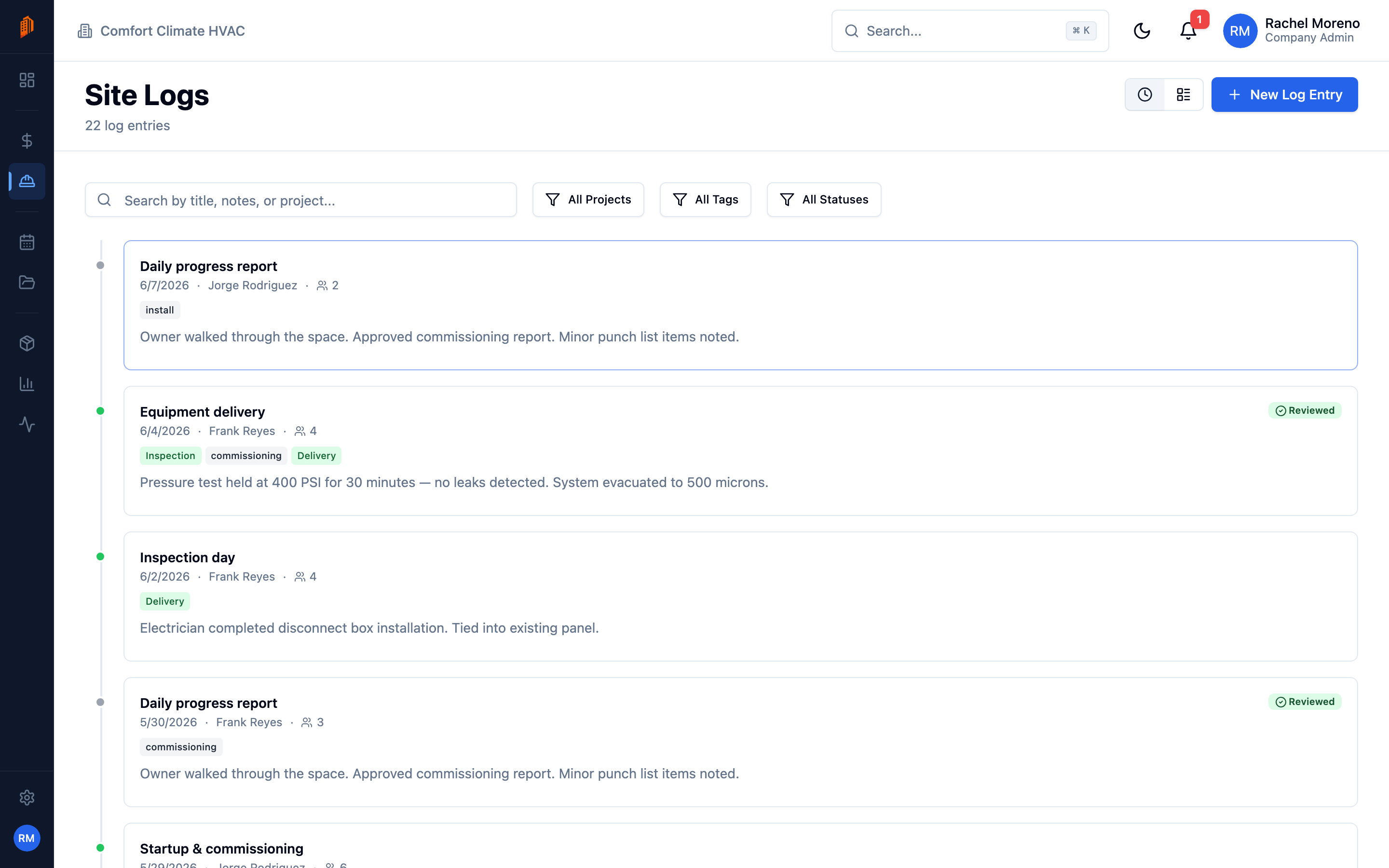
Site logs are daily records of what happened on a job. They document progress, issues, and visits for project history and dispute resolution. Site Logs is a top-level module – open it from the sidebar to see logs across every project. Each project also has its own Site Logs tab showing just that project’s entries.
Creating a site log: pick the project and date, add personnel on site, tag the entry (Progress, Issue, Delay, Safety, Delivery, Inspection), and write up what happened in the field.
Create a site log
Section titled “Create a site log”-
Start a new log. Click New Log Entry.
-
Pick the project and date. Choose the Project and the Date (defaults to today).
-
Add the details. Enter Personnel on Site, an optional Title, any Tags, and the Notes.
-
Create. Click Create Log Entry.
Tag a log to classify it: Progress, Issue, Delay, Safety, Delivery, Inspection, or General.
Add more on the detail page
Section titled “Add more on the detail page”Open a log to fill in the rest:
- Work Performed, Materials Received, Visitors on Site, and Issues.
- Photos – attach images from the job site.
- Mark Reviewed – a manager marks the log reviewed once checked.
The log also has its own Comments, Documents, and Activity. From a log you can link it to related records and create a Change Order directly from the log.
Browse and filter
Section titled “Browse and filter”The list has a Timeline and a Table view. Filter by project, tag, or reviewed status, or search by title, notes, or project name.
What’s next
Section titled “What’s next”- Time tracking – log crew hours against a project.
- Projects overview – a project’s own Site Logs tab.